If your TRRS audio plug is not functioning correctly, follow these troubleshooting steps to identify and resolve the issue:
1. Check for Physical Damage:
• Inspect the TRRS plug and cable: Look for any visible damage such as fraying, cuts, or bends that could affect the wiring. A damaged plug or cable might cause issues with sound output or microphone input.
• Test with a known working device: Plug the TRRS connector into another device (such as a different phone, laptop, or headset) to determine if the issue lies with the plug or the original device.
2. Confirm Proper Connection:
• Ensure the TRRS plug is fully inserted: A loose connection can lead to sound distortion, no sound, or microphone issues. Ensure the plug is pushed all the way into the headphone jack of your device.
• Check the device’s headphone jack: Inspect the headphone jack for dust or dirt that might be preventing a full connection. Use compressed air or a cotton swab to clean the jack gently.
3. Verify Correct Wiring:
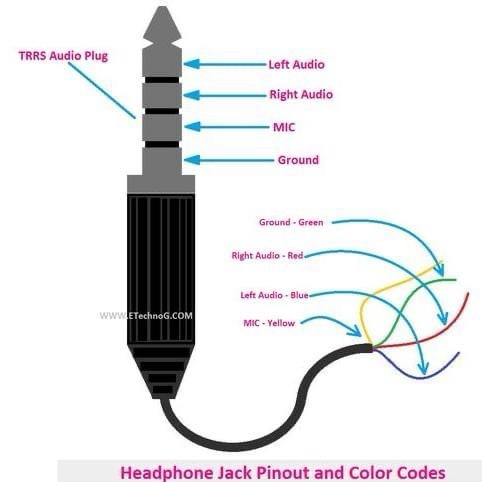
• Check color coding: The TRRS plug should follow a specific color-coding scheme. The left audio should be connected to the tip (blue), right audio to the first ring (red), microphone to the second ring (yellow), and ground to the sleeve (green).
• Test the wires individually: If possible, use a multimeter to test continuity of each wire inside the TRRS cable to ensure that each connection is intact.
4. Software or Driver Issues (for Computers or Laptops):
• Check audio settings: Make sure the correct output (headphones) and input (microphone) devices are selected in the device’s audio settings. Sometimes, the system may default to the built-in speakers or microphone.
• Update drivers: If you’re using a computer, ensure that the sound card or audio drivers are up-to-date. Outdated drivers may cause issues with microphone or headphone functionality.
• Test with different software: Try using a different app (like a media player or communication app) to see if the issue is related to specific software settings.
5. Test on Other Devices:
• Test on another device: Plug the TRRS headset into a different device (e.g., phone, tablet, or PC) to check if the issue persists across multiple devices. If it works on another device, the problem may lie with the original device’s headphone jack or settings.
• Try different headphones or microphone: If available, try using another headset or microphone with the same device to rule out issues with the headset itself.
6. Check for Compatibility Issues:
• Device compatibility: Ensure that the TRRS connector is compatible with your device. Some devices, especially older ones or those with a single TRS (Tip-Ring-Sleeve) jack, may not support a TRRS plug fully. In such cases, an adapter may be required to separate the audio and microphone signals.
7. Consider External Factors:
• Interference from nearby electronics: Check if any nearby electronic devices are causing interference. Move the device and headphones away from other electronic equipment, which could affect audio performance.
• Operating environment: If you’re in a noisy environment, confirm the microphone is not picking up excessive background noise, which might cause issues during use.
8. Replace or Repair:
• Replace the cable: If the cable appears damaged or doesn’t function properly after troubleshooting, replacing the TRRS cable might be necessary.
• Repair the connector: If the plug itself is faulty, consider re-soldering the connections or replacing the connector.
9. Contact Support:
• If none of these steps resolve the issue, consider reaching out to the device manufacturer or a professional technician for further help.
By following these troubleshooting steps, you should be able to identify whether the problem is with the TRRS plug, the cable, the device, or the software, and take appropriate action to resolve it.
 The Technology Place